
Background
Issuers/RTAs are advised to refer to SEBI Circular on “Operational guidelines for ‘Security and Covenant Monitoring’ using Distributed Ledger Technology (DLT).
This circular is applicable to all issuers proposing to issue non-convertible securities on or after April 01, 2022, shall record the details in the system before activation of ISIN. Further, in order to ensure compliance, Depositories are advised to allot or unfreeze an existing ISIN (in case of re-issuance), as applicable only after confirming recording of above-mentioned information”
SEBI Guidance
SEBI released a circular on Securities and Covenant Monitoring using Distributed Ledger Technology on 13 Aug 2021 to strengthen the process of security creation, monitoring of securities, monitoring of asset cover and covenants of non-convertible securities and recommended to develop a platform for ‘Securities and Covenant Monitoring’ System by the depositories
SEBI Circulars
SEBI Press Release
| Date | PR No. | Title |
|---|---|---|
| Apr 18, 2022 | 13/2022 | SEBI issues operational guidelines for “Security and Covenant Monitoring using Distributed Ledger Technology (DLT)” |
| Aug 25, 2021 | 26/2021 | SEBI issues Circular on “Security and Covenant Monitoring using Distributed Ledger Technology” |
Applicability for Stakeholders
Accordingly, with effect from April 01, 2022, the recording of asset details (and their verification), allotment, listing and payment of interest or redemption shall be available in the CDSL/NSDL system.
- All issuers proposing to issue non-convertible securities on or after April 01, 2022 shall record the details in the system before activation of ISIN.
- Further, in order to ensure compliance, Depositories are advised to allot or unfreeze an existing ISIN (in case of re-issuance), as applicable only after confirming recording of above-mentioned information.
- Further, where an issuer is unable to comply with the above requirement, it shall provide an explanation to Depositories. However, this dispensation is available only till July 01, 2022, after which ISIN shall not be allotted to an issuer.
- For existing outstanding non-convertible securities, issuers will be required to enter the details into the DLT system on or before January 31, 2023 and DTs shall verify the same by February 28, 2023.
Please note that all the existing process of activation of ISINs will remain the same.
To begin with, the following assets shall be tracked at portfolio level and no specific parameters for the underlying assets would be captured:
a. movable assets viz furniture, equipment, inventory etc.
b. current assets viz portfolio of advances/ receivables, etc.
c. any other asset of similar nature.
Process Flow for Secured Debentures (Annexure A & B)
Step 1: Creation of Asset
Issuer Maker: Issuer maker to go in the Transact section and click on the Create Asset tab and fill the required fields, upload the documents and submit it to the Issuer Checker to create an Asset in the system.

Step 2: Issuer Checker will review the Asset Creation request and take action on it – Approve/Reject :
Issuer checker will go on Enquire/Approve tab and click Approve New Asset, on the screen under For Your Action tab, Issuer checker will click on URN number to verify the asset details and documents. Post review and Issuer checker will approve asset creation request, Asset will be created and Asset ID will be assigned.
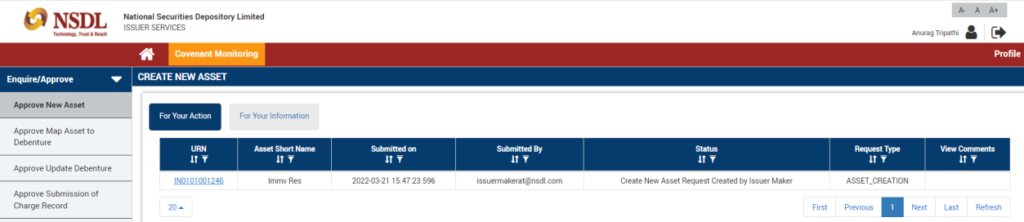
Step 3: Issuer Maker will map asset to ISIN and submit to Issuer Checker for approval
Issuer maker will go on Transact section, click on the Map Asset to Debenture tab and search ISIN. Issuer maker to select ISIN from search result.
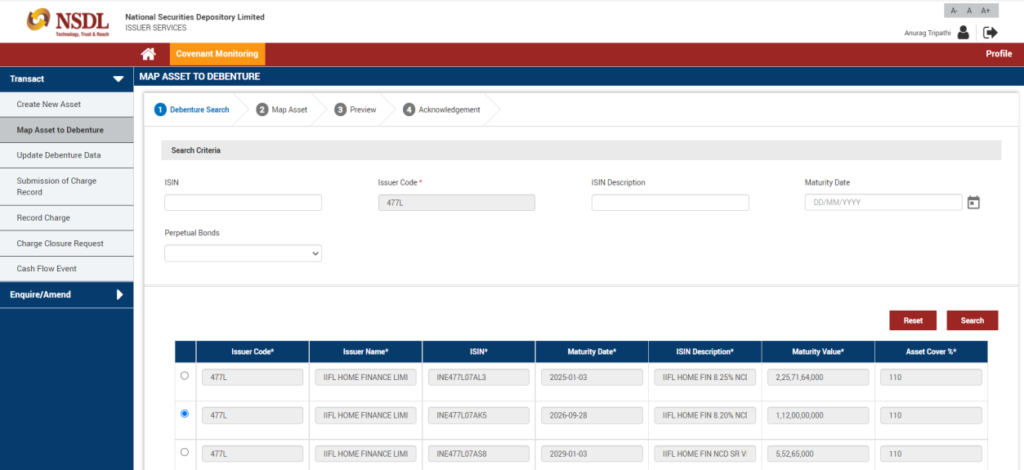
Once ISIN is selected, Issuer Maker will add Asset ID by clicking on edit button and entering Asset ID.
Once Asset details are populated, Issuer maker will click on Save & Next to map Asset with ISIN and submit the request to Issuer Checker for Approval.
Step 4: Issuer Checker will Approve Map Asset to Debenture ISIN request
Issuer checker will go on Enquire/Approve Section and click on Approve Map Asset to Debenture. Issuer Checker will approve Asset to ISIN mapping request submitted. Once approved by Issuer checker, request will be submitted to Debenture Trustee Maker for due diligence process.
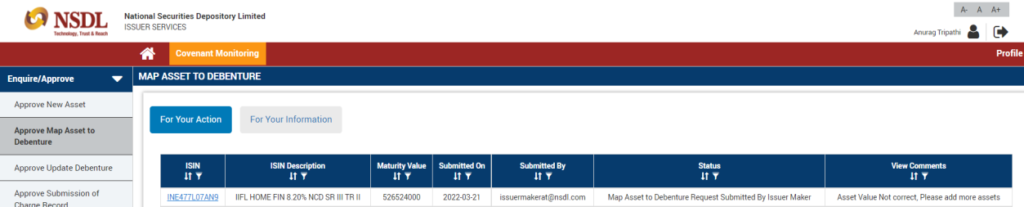
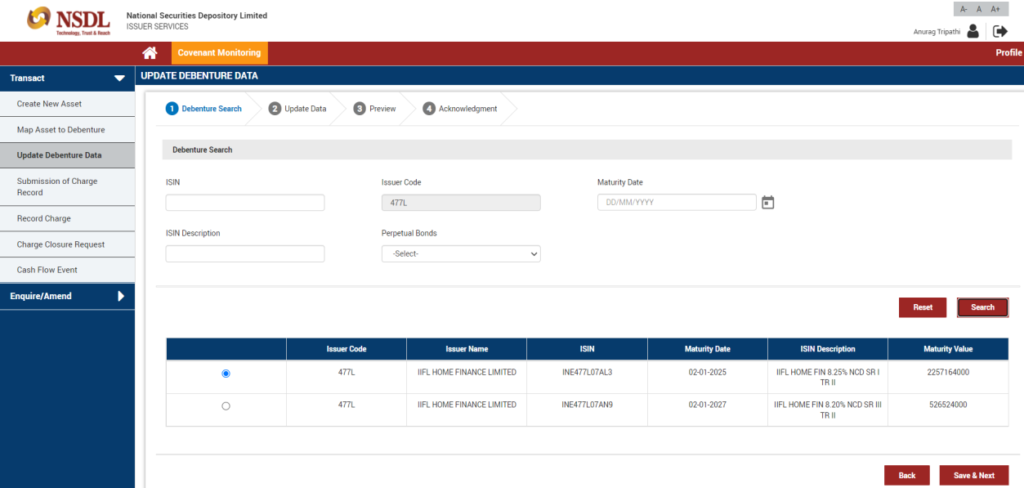
Step 5: Update Debenture Data (if applicable) – In case issuer wishes to update Asset Cover %, Issuer can use Update debenture data screen.
Issuer Maker will go on Section Transact and click on Update debenture data to update Asset Cover % if required and submit to Issuer Checker for review and approval.
Step 6: Debenture Trustee(DT) Maker will receive the request from Issuer, download the required information and documentation submitted by Issuer and initiate the due diligence process.
DT Maker to go on Enquiry/ Amend tab and click on Accept Asset Cover Request to see the request submitted by Issuer. On the webpage under the request list, DT will click on the Asset Linkage ID hyperlink to see the list of assets, along with details and documents. DT maker will click on the Asset ID hyperlink and save the information on the screen by using the Print and Save as PDF option.
Step 7: Post completion of due diligence process, Debenture Trustee Maker can upload the details and reports pertaining to Search Report, Title Search Report, Valuation Report
Step 8: DT checker to approve all 3 reports i.e. Search report, title search report and valuation report
Step 9– DT maker to Accept Asset Cover Request once DT checker approves all 3 reports i.e. Search report, title search report and valuation report and generate Annexure A.
DT Maker will go on Enquiry/Amend section and click on the Accept Asset Cover Request. DT Maker will click on For You Action tab and select the Asset Linkage ID to see the required details. DT Maker will fill data required for generation of Annexure A and click Save & Next. Annexure A will be generated and once Accept button is selected the request will be submitted to DT checker.
Step 10: DT Checker to Accept Asset Cover Request and Sign Annexure A
DT checker will go on Enquiry/Amend tab and click on Accept Asset Cover Request.
DT checker will click on the Asset Linkage ID hyperlink under For Your Action tab to see the request details and approve. Post approval Annexure A will get signed udsing DSC.
Step 11: Submission of Charge record by Issuer Maker
Issuer Maker will go on the Transact tab and click on the Submission of Charge Record and select the Asset Linkage ID under For you Action tab and update the details of the charge created and upload the required documents.

Step12 : Issuer checker will approve the request on Submission of Charge Record
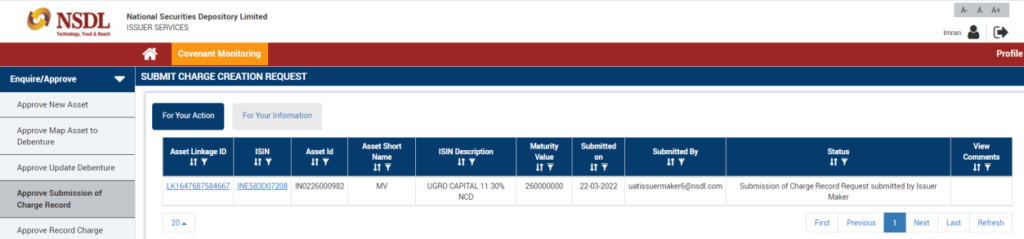
Issuer checker will go on Enquire/Approve tab and then click on Approve Submission of Charge Record and select Asset Linkage ID under For Your Action tab, on the click a new page will show the details of the ISIN, Assets and charge creation. Issuer checker will review and approves. Post approval it will be submitted to DT maker for further action.
Step 13: DT Maker to approve Submission of Charge record
DT maker will go on Enquiry/Amend section and click on Accept Submission of Charge Record. DT maker will click on the Asset Linkage ID under For Your Action tab to check and approve submission of charges and generate annexure B.
Step 14: Accept Submission of Charge record by DT checker and signing of Annexure B
DT maker will go on Enquiry/Amend section and click on Accept Submission of Charge Record. DT maker will click on the Asset Linkage ID under For Your Action tab to check and approve submission of charges and generate annexure B.
Step 15: Recording of Charge by DT Maker
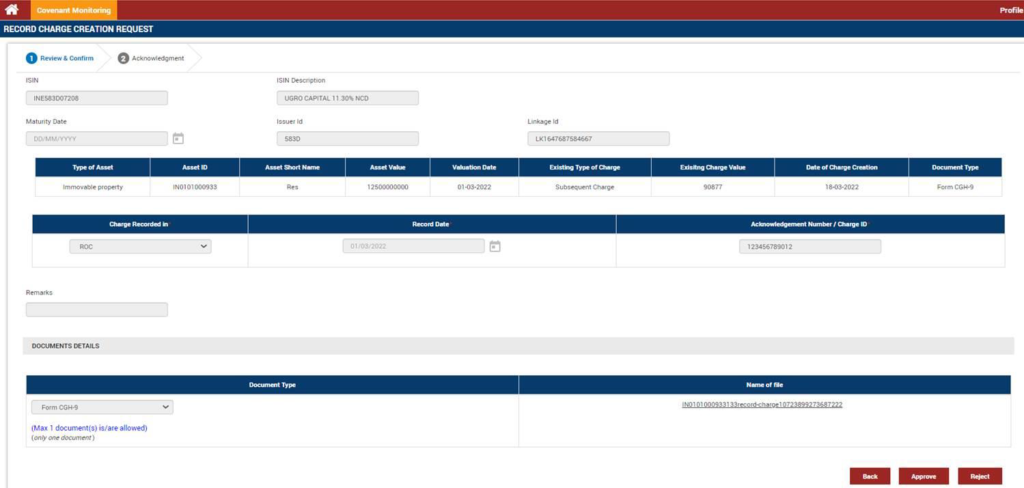
DT maker to record charge as filed on ROC, CERSAI and NESL and upload the required documents.
Step 16: DT Checker approve record charge submitted by DT Maker
Cash Flow Monitoring
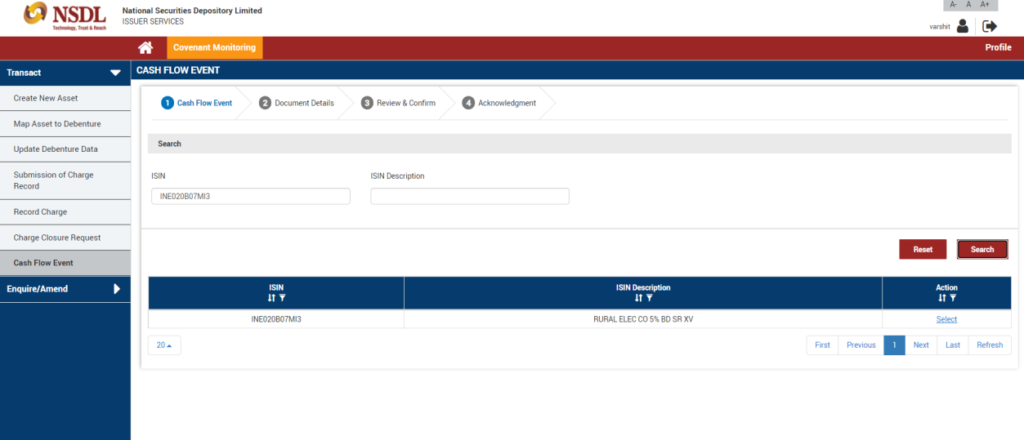
Cashflow Event Details Submission: Issuer Maker will go in the Transact tab and click on the Cash Flow Event and search for an ISIN and select it from the search result.
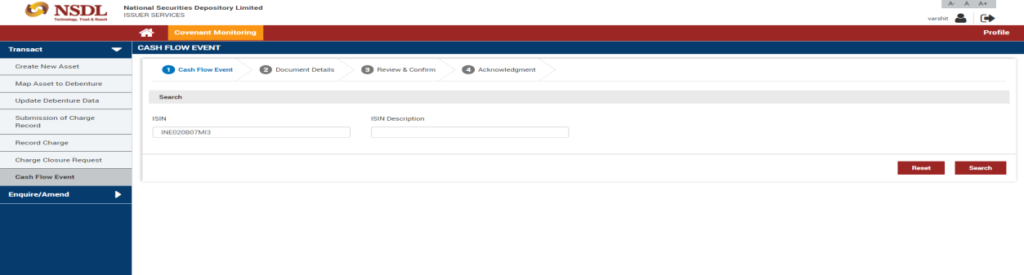
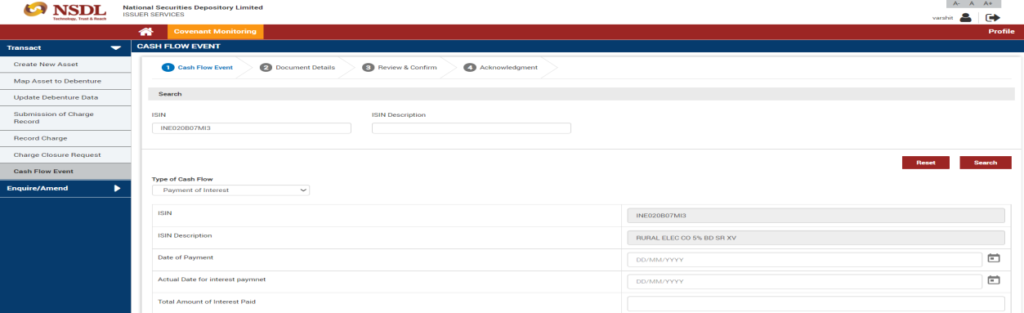
Once ISIN is selected, Issuer maker will select the Type of Cash flow – Payment of Interest or Redemption Payment and fill the required details and upload the documents. Issuer maker will submit the request to Issuer Checker for approval.
Issuer checker Cashflow event
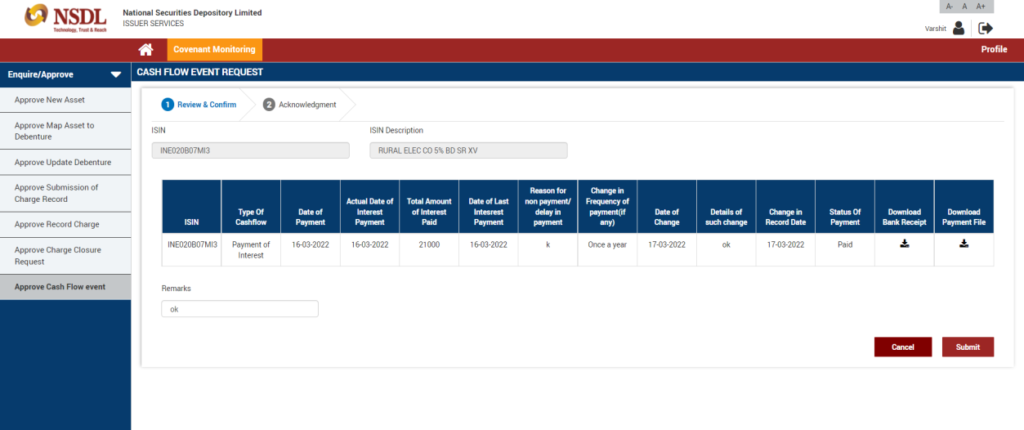
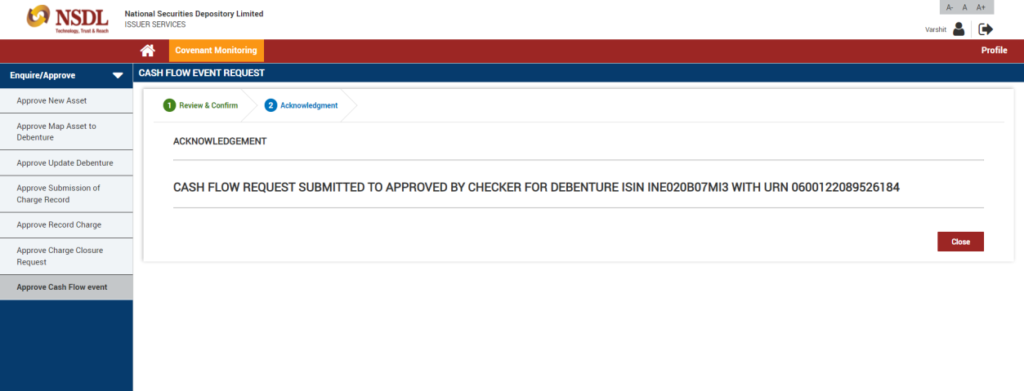
Issuer Checker will click on Approve Cash flow event under Enquire / Approve Tab and go under For Your Action and select the ISIN by clicking over it. Issuer Checker will verify the information and approve it. Post approval the request will be submitted to DT for further approval.
Recording of Covenants
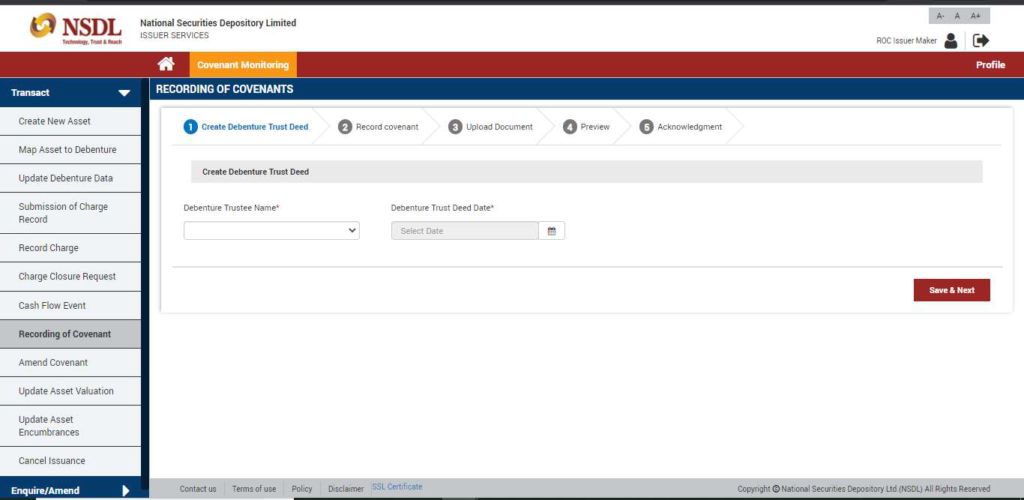
Step 1: Create Debenture Trust Deed (DTD)
Issuer maker to go in the Transact section and click on the ‘Recording of Covenants’ tab. Issuer maker to select the Debenture Trustee name from the dropdown and fill the Debenture Trust Deed (DTD) date. Please note that Issuer Maker to provide the actual agreement date here. Issuer maker will click on ‘Save & Next’ after providing necessary details.
Step 2: Record covenant
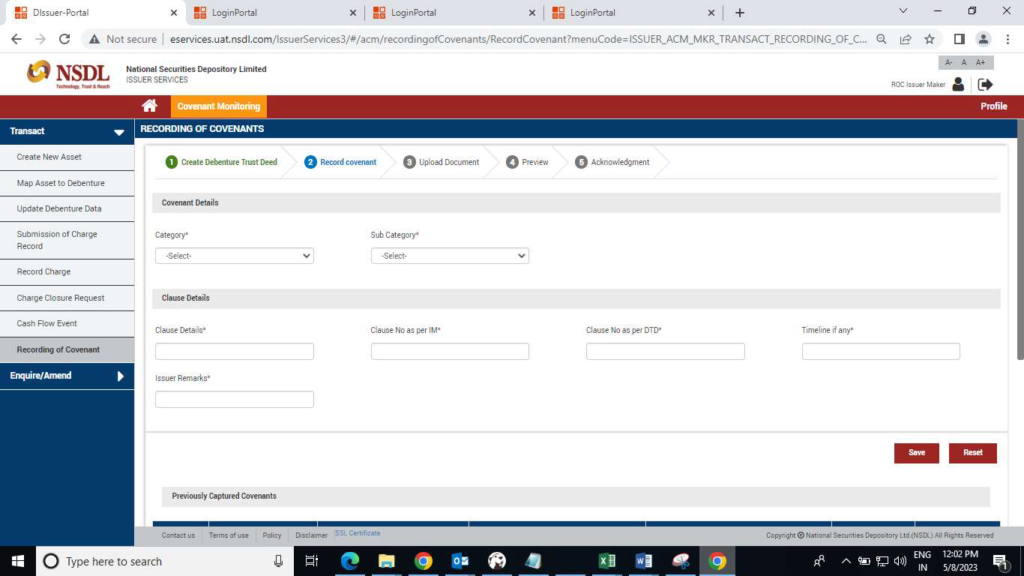
For each covenant to be recorded, Issuer Maker will provide following details regardless of covenant
category/ sub-category:
- Clause Details as per the DTD – Issuer will include clause details as mentioned in the DTD/ equivalent document. Issuer can use the same text as mentioned in the DTD for this section.
- Clause No as per DTD – clause/ section number of the DTD that include details of the covenant being recorded
- Clause No as per IM – In case covenant clause has been taken from the IM. User can enter ’NA’ if this is not applicable.
- Timeline – Timeline in days within the covenant needs to be reported after the end of the period e.g. 15 days after the end of quarter. In case there no such timeline defined, user can enter ‘NA’.
- Issuer Remarks – Any comments by issuer pertaining to covenant.
Step 3: Document Upload
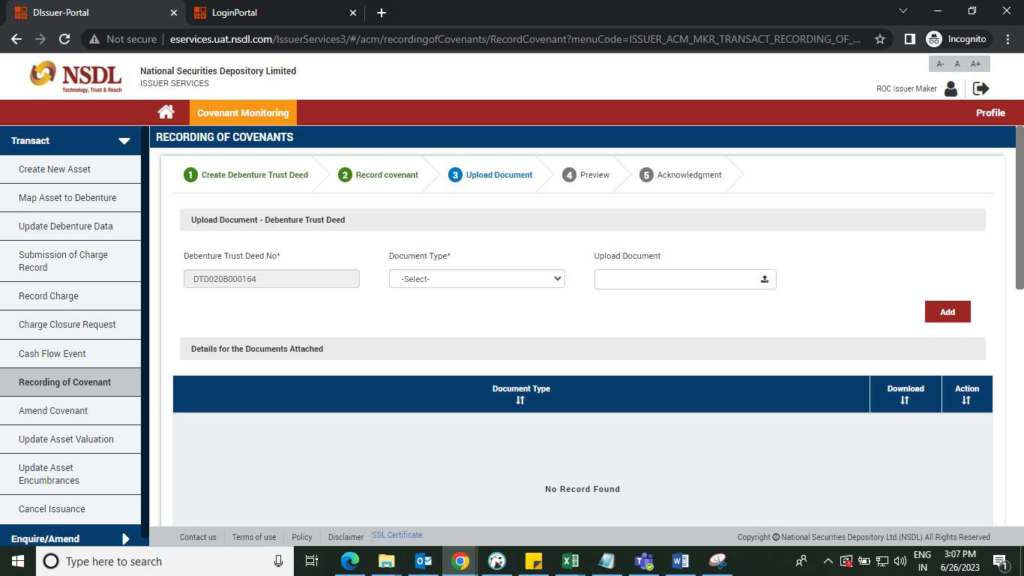
Issuer maker will upload the documents e.g. DTD for covenants recorded in the system. There
are 2 sections for the document upload.
- ‘Upload Document – Debenture Trust Deed’: Issuer maker will need to upload at least one document in the section mandatorily.
- ‘Upload Document – Covenant’: For each covenant recorded in the system, user can upload supplementary document, however this is optional.
- Upload Document – Debenture Trust Deed:
DTD number will be auto-populated. Issuer maker to select the ‘document type’, upload document and click on ‘Add’. Uploaded document will appear in ‘Details of Documents Attached’ section.
Step 4: Preview recorded covenants
Issuer can review all covenants recorded and document uploaded in the previous steps.
Step 5: Acknowledgement
A system generated DTD number will be created and assigned to the DTD. This DTD number will also be used as DTD identifier in various user dashboards.
Mapping of ISIN(s) with Debenture Trust Deed (Covenants)
Pre-conditions:
- Debenture Trust Deeds (DTDs) creation i.e. recording of covenants should be approved by Issuer checker. Only those DTDs will be available for the mapping with ISINs
- For secured ISIN(s), mapping of asset with debenture should be approved by Issuer checker. Only these ISINs will be available for mapping with DTDs. There is no such pre-condition for unsecured ISINs.
Mapping of ISIN with Debenture Trust Deed by Issuer Maker:
Issuer maker will initiate the mapping of ISIN(s) with Covenants (Debenture Trust Deed) from ‘Transact-> Map ISIN and Debenture Trust Deed’ tab. Issuer Maker will search ISIN, system will display ISIN and ISIN Description. Issuer maker then search the DTD and map the same with ISIN. User can map multiple DTDs with single ISIN.
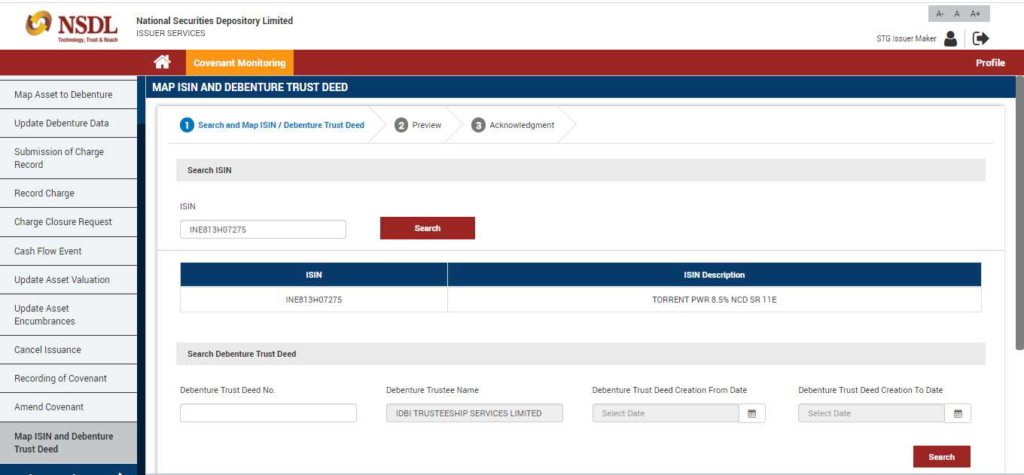
User can search Debenture Trust Deed using ‘Debenture Trust Deed No’ or Debenture Trustee creation date or both. Debenture Trust Deed number should be exact match. Date rage in (Debenture Trust Deed Creation From Date – Debenture Trust Deed Creation To Date) will be maximum of 90 days.
Issuer checker to approve ‘Mapping of ISIN with Debenture Trust Deed’:
Issuer Checker will see the mapping of ‘ISIN and Debenture Trust Deed’ request submitted by issuer maker under ‘For Your Information’ tab. Issuer checker will click on the URN number on the dashboard to view the request and see further details under ‘Review & Confirm’ page. Issuer checker can view the covenants recorded under the DTD by clicking on the DTD number. Issuer checker can either reject the mapping request by providing rejection comments or approve the request.
Rejection of Map ISIN to DTD will send the request in FYI of the Issuer Maker and Checker.
The Issuer Maker will restart the process of MAP ISIN to DTD in case of rejection.
DT Maker to approve Mapping of DTD with ISIN and covenants recording within DTD(s):
DT Maker will go Enquiry/Amend and view the request of mapping of ISIN and Debenture Trust Deed under ‘For Your Action’ tab. On the dashboard, DT maker will see the DTD number and ISIN as submitted by issuer checker. DT maker will need to perform below actions:
DT maker will click on URN and see the details of covenant recorded under the Debenture Trust Deed number.
DT maker can download the document uploaded by Issuer
DT Maker will click on ‘view details’ against each Covenant (s) and click on the below message (I have reviewed the covenant details) after reviewing the details of covenant.
DT maker will not be allowed to proceed further unless all the Covenant (s) are ticked in “View Details” section (I have reviewed the covenant details). Reviewed covenants can be identified as there will be (✔) mark against the same.
DT maker can reject the request if any discrepancy found either with mapping of ISIN and DTD or with recording of covenants. Rejection comments are mandatory in this case.
If request is rejected by DT Maker, it will be displayed in FYI of Issuer Maker & Issuer Checker.
In case Mapping of ISIN and DTD is rejected by DT maker, Issuer maker will re-initiate the request. If request is rejected due to any discrepancy in covenant(s) recorded, Issuer maker can amend the recorded covenants through ‘Covenant Amendment’ and map the ISIN again. In case discrepancy found in mapping, issuer maker will re-initiate the mapping of ISIN and DTD request. In either case, request must be approved by Issuer checker and subsequently sent to DT maker.

CS Avik Gupta
8076528319